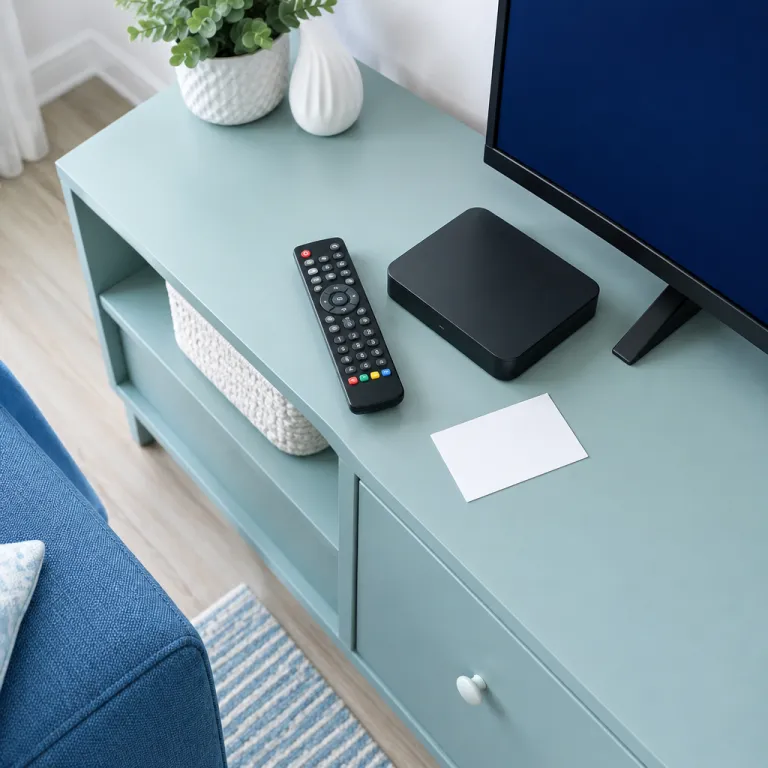
Understanding remote control codes for directv remote
What are remote control codes and why do they matter?
When setting up a home theater projector with your DirecTV remote, understanding remote control codes is essential. These codes are unique sequences that allow your remote—whether it’s a Genie, Genie Mini, or another DirecTV model—to communicate with different devices, including projectors. The right code lets you use your remote to control power, volume, and input source, making your viewing experience seamless.
How does the remote communicate with your projector?
DirecTV remotes, such as the Genie remote or the top remote, use infrared signals to send commands. When you press and hold specific buttons, like the mode switch or the select button, the remote enters programming mode. This is when you can enter the correct code for your projector. Once programmed, the remote’s green light at the top will usually blink to confirm successful pairing.
Types of DirecTV remotes and compatibility
There are a few types of DirecTV remotes, including the Genie remote, Genie Mini, and universal remote models. Each has its own method for programming and may support different devices. It’s important to check if your remote supports projector control before starting the programming process. Some remotes allow you to change input or control the projector’s receiver, while others may have limited functionality.
Why finding the right code is crucial
Without the correct code, your DirecTV remote won’t be able to control your projector. This can lead to frustration, especially if you want to quickly switch inputs or adjust the volume during a movie night. If you run into trouble or your projector isn’t responding, it could be a sign that the code entered isn’t compatible or the remote is in the wrong mode. For persistent issues, consider finding reliable projector repair services nearby to rule out hardware problems.
What’s next?
Once you understand the basics of remote control codes and how your DirecTV remote interacts with your projector, the next step is to locate the correct code for your specific device. This involves following on-screen instructions, using the remote’s buttons, and sometimes troubleshooting if the pairing doesn’t work as expected. The following sections will guide you through these steps and offer tips for optimizing your home theater setup.
How to locate the correct code for your projector
Finding the Right Code for Your Projector
When you want to use your DirecTV remote or Genie remote to control your home theater projector, the first step is to locate the correct code. This code allows your remote to communicate with your projector, making it possible to turn it on, change the input source, or adjust the volume directly from your DirecTV remote.
- Check the official DirecTV code list: Start by visiting the DirecTV website or checking the printed code list that comes with your remote. Look for your projector brand and model. If you use a Genie mini or a universal remote, the process is similar—just make sure you select the right device category.
- Use the on-screen setup: With your receiver on, press and hold the Mute and Select buttons on your remote until the light at the top blinks green twice. This puts your remote in programming mode. Follow the on-screen instructions to enter the code for your projector. If you see a prompt to enter a code, use the number buttons on your remote control.
- Try the automatic code search: If you can't find your projector in the list, use the automatic search feature. Point the remote at your projector, press and hold the Mute and Select buttons until the green light flashes, then press the appropriate device button (like AV1 or AV2). The remote will cycle through codes until your projector responds. This can take a few minutes, so be patient.
- Consult your projector manual: Some projector brands provide specific remote control codes. Check your projector’s manual or support site for additional codes that may not be listed by DirecTV.
- Reference technical resources: For more advanced setups or if you’re using a Kristie projector server, you might need to understand the components involved. You can find more details in this guide on understanding Kristie projector server components.
Once you have the correct code, you’re ready to move on to programming your DirecTV remote for your projector. Make sure you follow the steps carefully, as entering the wrong code or not holding the buttons long enough can prevent successful pairing. If you run into issues, the next section will help you troubleshoot common problems.
Programming your directv remote for a projector
Step-by-step guide to programming your DirecTV remote for a projector
Programming your DirecTV remote to control your projector can make your home theater experience much smoother. Whether you use a standard DirecTV remote, a Genie remote, or a Genie Mini, the process is similar. Here’s how to get started:- Check your remote type: Identify if you have a standard DirecTV remote, Genie remote, or Genie Mini. The button layout and programming steps are slightly different, so this matters.
- Power on your projector and receiver: Make sure both your projector and DirecTV receiver are turned on. Point the remote at the projector for the best results.
- Enter programming mode: On most DirecTV remotes, press and hold the Mute and Select buttons together until the light at the top of the remote flashes green twice. This means the remote is ready to be programmed.
- Input the correct code: Enter the code you found for your projector model. If you’re unsure about the code, refer to the earlier section on locating the correct code. The green light at the top should flash again to confirm the code was accepted.
- Test the remote: Try using the remote to control the projector’s power or input source. If it doesn’t work, repeat the process with the next code on your list.
- Switch device modes if needed: Some remotes have a mode switch or device button at the top. Make sure you’re in the right mode (TV, AV1, or AV2) when programming and using the remote with your projector.
- Follow on-screen prompts: With Genie remotes, you may see instructions on your TV screen. Follow these prompts to complete the programming process.
Quick troubleshooting tips
- If the remote’s top light doesn’t flash green, check the batteries or try holding the buttons longer.
- Double-check that you’re entering the correct code for your projector brand and model.
- Make sure there’s a clear line of sight between the remote and the projector’s IR sensor.
Common issues when pairing your remote with a projector
What to Do When Your Remote Won't Pair with the Projector
Pairing your DirecTV remote or Genie remote with a projector can sometimes be tricky. Even after you enter the correct code and follow the on-screen prompts, you might run into issues where the remote control just doesn’t seem to work with your device. Here are some common problems and practical steps to troubleshoot them:- Incorrect Code Entry: Double-check that you entered the right code for your projector. Sometimes, a single wrong digit can prevent the remote from working. Try re-entering the code and follow the screen instructions carefully.
- Mode Switch Not Set: Make sure the mode switch at the top of your DirecTV remote is set to the correct device. If you want to control your projector, the switch should be in the appropriate mode before you press and hold the select and mute buttons.
- Remote Not in Programming Mode: If the green light at the top of the remote doesn’t flash or stays off, the remote might not be in programming mode. Press and hold the mute and select buttons until the light at the top remote blinks twice, then enter the code again.
- Line of Sight Issues: Point the remote directly at the projector’s IR sensor. Obstructions or distance can interfere with the signal. Try moving closer and ensure nothing blocks the path.
- Input Source Not Set: If your projector isn’t responding, check that the input source matches the device you’re trying to control. Use the input or source button on the projector or remote to change input as needed.
- Receiver or Genie Mini Problems: Sometimes, the issue is with the DirecTV receiver or Genie Mini, not the remote. Restart the receiver and try programming the remote again.
- Battery Issues: Weak or dead batteries can cause the remote to malfunction. Replace the batteries and repeat the programming steps.
Tips for optimizing your home theater experience
Fine-tuning Your Projector Setup for the Best Viewing
Getting your home theater projector to work with your DirecTV remote is just the start. To really enjoy your setup, a few extra steps can make a big difference in picture quality and ease of use.- Adjust the input source: After programming your remote, make sure you can easily switch between devices. Use the input or source button on your remote control to toggle between your receiver, projector, and other devices. If your remote has a mode switch, set it to the correct device before pressing input.
- Optimize remote placement: Always point the remote directly at the projector or receiver. The top of the remote should face the device, and you’ll often see a green light at the top when you press a button. If you’re using a genie remote or genie mini, make sure there’s a clear line of sight.
- Check for responsive controls: After entering the code and programming the remote, test all the main buttons—power, volume, input, and select. If any button doesn’t respond, try reprogramming or entering the code again. Sometimes, holding the mute and select buttons together until the light at the top flashes green can help reset the remote for programming.
- Use on-screen prompts: Many DirecTV receivers and genie remotes will guide you through programming steps. Follow the on-screen instructions carefully, especially when pairing or changing input sources.
- Keep your projector lens clean: A clean lens ensures the best image quality. Dust or smudges can affect brightness and clarity. Regularly check your projector lens and clean it as needed, following the manufacturer’s guidelines.
Remote Control Habits for Smooth Operation
- Always press and hold the correct button for programming or switching modes. For example, to program your DirecTV remote, you may need to hold mute and select until the light at the top blinks.
- Label your remotes if you use more than one. This helps avoid confusion between the genie remote, the DirecTV remote, or a universal remote.
- If you notice lag or unresponsive buttons, check the batteries and replace them if needed. Weak batteries can cause the remote to lose programming or fail to control your projector or receiver.
When to consider a universal remote for your home theater
Why a Universal Remote Can Simplify Your Home Theater
After you’ve tried to program your DirecTV remote or genie remote to control your projector, you might notice some limitations. Not every projector or device responds perfectly to the standard DirecTV remote codes. Sometimes, even after you enter the right code and see the green light at the top, certain functions like input source switching or advanced menu navigation may not work as expected.
This is where a universal remote can really make a difference. Universal remotes are designed to control multiple devices—projectors, receivers, soundbars, and more—with a single controller. They often support a wider range of codes and brands, making it easier to program and control your entire setup. Instead of juggling several remotes or struggling with the mode switch, you can use one remote to manage everything.
- Broader compatibility: Universal remotes typically support more devices and brands, so you’re less likely to run into code or programming issues.
- Streamlined experience: You can program the universal remote to handle your projector, DirecTV receiver, and even your sound system, reducing clutter and confusion.
- Advanced features: Many universal remotes offer customizable buttons, macros, and even touchscreen controls, letting you automate tasks like turning on all devices or changing input sources with a single press.
- Better support for newer devices: If you upgrade your projector or add a new device, a universal remote is more likely to support it without hassle.
When your DirecTV remote or genie mini remote can’t fully control your projector, or if you find yourself constantly needing to press and hold different buttons, consider investing in a universal remote. Look for models that are easy to program, have a clear screen or app for setup, and offer good support for home theater devices. This way, you can focus on enjoying your movies instead of troubleshooting remote control issues.