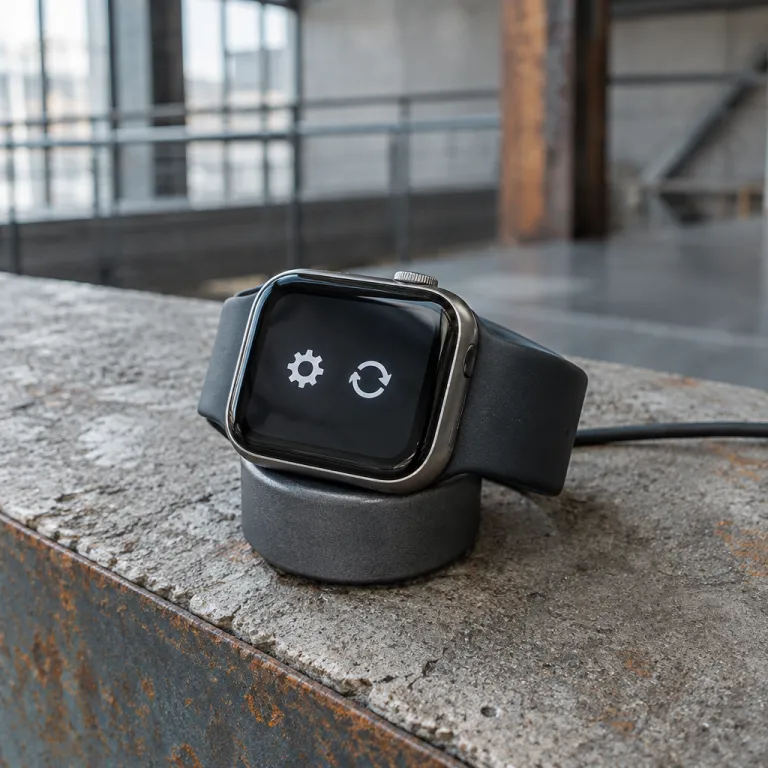
Understanding When to Factory Reset Your Apple Watch
Recognizing the Right Time for a Complete Reset
In the realm of digital devices, specifically when considering your Apple Watch, there comes a time when a factory reset might be the best solution. It's crucial to determine when this step is necessary for your particular situation. Unlike a simple restart, as explained in efficient Apple Watch restart methods, a factory reset will fully erase your content settings and data, reverting the watch back to its original state.
Situations demanding a factory reset often include persistent software issues, such as frequent crashing or failures to update the watch app effectively. You might also consider a reset if you plan to sell or give away your device, ensuring your personal information is fully removed. Additionally, a forgotten passcode or issues with the activation lock when pairing with a different iPhone could necessitate this step.
Understanding the decision to reset requires careful consideration of your current setup and personal information stored within the device. A factory reset is a significant action, so make sure to confirm any backed-up data is secure on your iphone or iCloud to prevent loss. Efficiently managing your Apple device settings and data now can save potential hassles down the road.
Preparing Your Apple Watch for a Factory Reset
Necessary Steps Before Resetting
Taking the time to properly prepare your Apple Watch can make the factory reset process much smoother. Here are some essential steps that you should consider before you begin:- Back Up Your Data: Ensure your data, including apps, settings, and health information, is backed up to your paired iPhone. This will allow seamless restoration after the reset.
- Unpair Your Apple Watch: Unpairing your Apple Watch from your iPhone is crucial. This automatically creates a backup of your watch's data to your iPhone. To do this, open the Watch app on your iPhone, tap ‘My Watch,’ then ‘All Watches,’ and select the 'i' icon next to the watch you want to unpair. Tap 'Unpair Apple Watch', and the device will begin unpairing.
- Check Activation Lock: The Activation Lock should be verified to prevent future issues. It ties your watch to your Apple ID, enhancing security. Visit Settings on iCloud.com and review the devices linked to your Apple ID.
- Disable Cellular Plan (if applicable): If your Apple Watch has a cellular plan, you should consider contacting your carrier to manage your plan before proceeding with a reset.
For a related topic on optimizing the use of your Apple Watch, consider checking out how to locate your iPhone using your Apple Watch. This guide could prove invaluable during periods of re-pairing your devices.
Step-by-Step Guide to Factory Resetting Your Apple Watch
Initiate the Reset Process
To begin the factory reset on your Apple Watch, you'll need to access the "Settings" on your device. Navigate to the settings by tapping the "Settings" icon directly on your watch. From there, scroll down and tap on "General."Erase Content and Settings
Once you're in the "General" section, look for the "Reset" option. Tap "Reset" and then select "Erase All Content and Settings." This will prompt your device to remove all data and erase everything back to factory settings. You may be asked to enter your password to proceed.Confirm the Reset
After entering your password, you may need to confirm your choice to erase the contents. Tap "Erase All" to confirm. Remember, this step will erase all data from your watch, so ensure you've backed up any important information before performing this reset.Check Activation Lock
Before completing the process, ensure that your paired iPhone is accessible, as the activation lock may require your Apple ID and password once the device reboots. This security measure prevents unauthorized access if your watch is misplaced or stolen.Additional Considerations for Cellular Models
If your Apple Watch has a cellular plan, you will be asked if you want to keep or remove the cellular plan during the reset. Keeping the plan will maintain your subscription; removing it will erase Apple Watch's cellular plan settings. After following these steps to reset Apple Watch, you'll find your device is like a blank slate, ready to be paired again with your iPhone. For more detailed guidance on other wearable technology, check out this insightful blog to explore features of different smartwatches.Re-pairing Your Apple Watch with Your iPhone
Re-establishing Connection with Your Paired iPhone
After performing the factory reset on your Apple Watch, you'll need to set it up again and pair it with your iPhone. This process ensures that your watch syncs seamlessly with your iPhone, allowing you to make the most out of its features.- Power On Your Apple Watch: Once the reset is complete, press and hold the side button on your watch until the Apple logo appears. This will turn your device back on and initiate the setup process.
- Bring Your iPhone Close: Make sure your paired iPhone is nearby. Typically, the watch will automatically detect the iPhone that has been paired before, facilitating a smooth reconnection.
- Launch the Watch App: Open the Watch app on your iPhone. This app is essential for pairing the devices and managing your watch settings moving forward.
- Follow On-screen Instructions: You will be prompted to pair the Apple Watch with your iPhone. Simply follow the on-screen instructions. You may have to hold your iPhone over the watch's display to scan the pairing animation that appears on your device.
- Restore or Set Up as New: You’ll have the option to restore from a backup or set up as a new device. If you've backed up your data previously, choosing the restore option can conveniently bring back your app settings and data. Otherwise, setting up as a new watch gives a fresh start.
- Manage Your Cellular Plan: If your Apple Watch has cellular capabilities, you may be prompted to configure your cellular plan details. Follow the instructions to set this up if necessary, ensuring uninterrupted connectivity.
- Enable Activation Lock: Ensure that Activation Lock is enabled for added security. This feature ties your Apple Watch to your iCloud account, preventing unauthorized use if it's ever lost or stolen.
Troubleshooting Common Issues Post-Reset
Addressing Activation Lock and Connectivity After Reset
Once you've successfully completed the factory reset on your Apple Watch, it's not uncommon to encounter a few post-reset challenges. One of the most frequent issues is the Activation Lock. After the reset, your Apple Watch may prompt you for your Apple ID and password. If you plan to sell or give away your watch, ensure the lock is removed before transferring ownership. This step prevents future users from being locked out.Re-establishing Cellular Connectivity
For those with a model that supports cellular, reconfiguration might be necessary. Post-reset, check your cellular plan settings. Ensure your Apple Watch has reconnected correctly by reviewing the respective settings on both your iPhone and watch device.Checking for Unpaired Devices
In some instances, your Apple Watch might still appear paired, even after the reset. If your watch does not link properly, manually unpair it via the Apple Watch app on your iPhone. Simply tap the "i" next to your watch on the app, then choose to unpair. Afterward, proceed with pairing again as you initially did.Monitoring App Functionality and Data Synchronization
Once your watch is reset and re-paired, verify that all apps function as expected. Should any app fail to work, you may need to remove and reinstall it. Ensure your data, like activity records, syncs seamlessly. If synchronization issues persist, reconnect your Apple Watch using the settings on your iPhone. By troubleshooting these common post-reset issues, you enhance your device’s performance and enjoy the optimal functionalities it offers.Maintaining Your Apple Watch for Optimal Performance
Keeping Your Apple Watch Running Smoothly
Maintaining your Apple Watch in optimal condition ensures smooth functionality after you've performed a factory reset. Here are a few essential tips and practices to keep in mind:- Update Your WatchOS Regularly
- Apple frequently releases updates for WatchOS that can include important security patches, new features, or bug fixes. Ensure that your Apple Watch is connected to a Wi-Fi network and keep it up-to-date by navigating to the Watch app on your iPhone, tapping on "Settings," followed by "General," and then selecting "Software Update."
- Manage Your Apps and Data Wisely
- After a reset, selectively reinstall only the apps you use frequently to conserve storage and resources on your device. Regularly review the apps installed on your watch and remove those you no longer need.
- Optimize Battery Life
- Extending battery life can be as simple as adjusting certain settings. Consider reducing screen brightness, disabling the wake screen setting, or using the Power Reserve mode when necessary. These little tweaks can make a notable difference.
- Secure Your Apple Watch
- Utilize the Activation Lock feature to ensure your watch remains secure. This setting pairs your watch with your Apple ID, making it difficult for anyone to use your device if it's lost or stolen. To check its status, go to your iPhone’s Watch app, tap "Settings," then "Activation Lock."
- Regularly Clean and Care for Your Device
- It's essential to keep your Apple Watch clean and dry. Use a non-abrasive, lint-free cloth to wipe down your watch and the band. Avoid using any solutions directly on the device to prevent damage.
- Manage Your Cellular Plan
- If you have a cellular version of the Apple Watch, regularly review your cellular plan to ensure it meets your current needs. Access the cellular settings on the Watch app and make necessary adjustments.