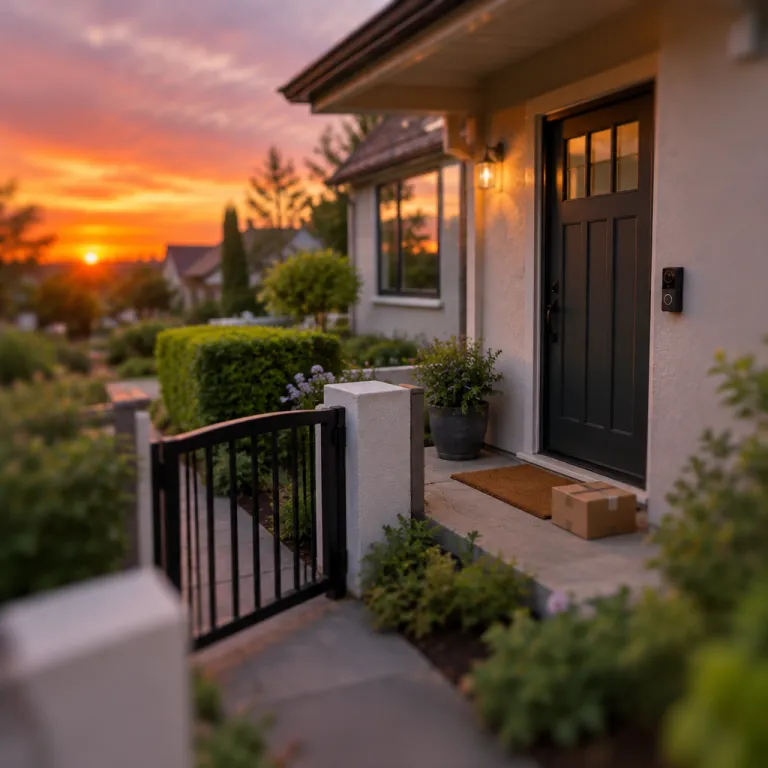
Understanding your Ring camera features
Key Functions That Make Your Ring Camera Stand Out
When you start using a Ring camera, it’s important to get familiar with its main features. This will help you maximize your home security and make the most of your investment. Whether you have a Ring Video Doorbell, a Ring Stick Up Cam, or a Ring Pro model, the core functions are designed to be user-friendly and effective for both home and business security needs.
- Live Video View: The Ring app allows you to view real-time video from your camera. This means you can check in on your property anytime, from anywhere, using your phone or tablet.
- Two-Way Audio: Most Ring cameras include a built-in microphone and speaker. This lets you communicate directly with visitors or delivery personnel, adding an extra layer of convenience and security.
- Motion Detection: Your Ring camera can detect movement and send instant alerts to your phone or email. You can customize these alerts to reduce unnecessary notifications and focus on what matters most.
- Night Vision: Even in low-light conditions, the camera’s infrared sensors provide clear video, so you can monitor your property around the clock.
- Cloud Video Storage: With a Ring Protect subscription, your video recordings are stored securely in the cloud. This makes it easy to review, download, or share important footage when needed.
- Privacy Zones: You can set up privacy zones to block out areas you don’t want to monitor, helping you respect the privacy of neighbors or family members.
Ring cameras are designed to be flexible and scalable, fitting into a larger security system if needed. You can select different models based on your needs, from basic entry-level cameras to advanced Pro versions with enhanced features.
If you’re looking for a detailed guide or user manual, Ring provides official documentation that you can download from their website or access through the app. For more in-depth support and tips on maximizing your Ring camera’s potential, you can learn more about Ring camera support and best practices.
As you move forward, you’ll discover how to set up your camera, configure motion alerts, and integrate with other smart devices. Each step is designed to help you build a reliable and user-friendly security system for your home or business.
Setting up your Ring camera for the first time
Getting Your Ring Camera Ready for Use
Before you can enjoy the full benefits of your Ring camera, you’ll need to set it up properly. Whether you have a Ring Pro, Gen 2, or another model, the process is designed to be user-friendly. Here’s a practical guide to help you get started and avoid common pitfalls.
- Download the Ring app on your phone or tablet. This app is essential for setup, daily use, and accessing features like video view, motion alerts, and system settings.
- Create or log in to your Ring account using your email. This step is required for device registration and security.
- Select your Ring camera model in the app. The app will guide you through the process, whether you have a Ring Pro, Gen 2, or another version.
- Follow the in-app instructions to connect your camera to your Wi-Fi network. Make sure your Wi-Fi signal is strong where you plan to install the camera.
- Physically install your camera at the desired location. Use the included mounting hardware and refer to the user manual for tips on placement and angle. If you’re setting up a wired model, like the Ring Floodlight Camera Wired Plus, ensure you follow electrical safety guidelines. For more details, check out this Ring Floodlight Camera Wired Plus guide.
- Power on your camera and wait for the indicator light to show it’s ready for pairing.
- Test the video feed in the app to confirm your camera is working and positioned correctly. Adjust as needed for the best view of your entryway, driveway, or business area.
If you need more help, the Ring app offers a step-by-step manual and troubleshooting tips. You can also download the official user manual from the Ring website for your specific gen or pro model. For direct support, use the contact or phone options in the app or on the Ring website.
Once your camera is set up, you’ll be ready to learn about configuring motion alerts, privacy zones, and managing your video recordings. These next steps will help you get the most out of your security system and keep your home or business protected.
Configuring motion alerts and privacy zones
Fine-tuning Motion Alerts for Better Security
One of the most valuable features of your Ring camera is its ability to detect motion and send instant alerts to your phone or email. To get started, open the Ring app and select your camera from the device list. In the settings menu, you’ll find options to adjust motion sensitivity and customize detection zones. This is especially useful if you want to avoid unnecessary notifications from passing cars or pets.
- Motion Sensitivity: Adjust the slider to set how sensitive your camera should be to movement. Lower sensitivity can help reduce false alarms, while higher sensitivity ensures you don’t miss important activity.
- Custom Zones: Use the app to draw specific areas in your camera’s view where you want motion to be detected. This is ideal for focusing on entryways or driveways, and skipping content like busy sidewalks.
- Smart Alerts: Enable advanced notifications to get more detailed alerts, such as distinguishing between people and other types of movement. This feature may vary by Ring camera gen and model, so check your user manual or the app for availability.
Protecting Your Privacy with Zones
Privacy is a top concern for many users. The Ring app allows you to set up privacy zones, which block out certain areas from video recording and live view. This is useful if your camera covers a neighbor’s property or a private area of your home. Simply select the privacy zone option in the app, then draw the areas you want to exclude. The camera will ignore motion and skip content in these zones, helping you stay compliant with privacy guidelines and local regulations.
Tips for Reliable Motion Detection
- Position your camera at the right angle to maximize coverage and minimize false alerts.
- Regularly update your app and camera firmware to access the latest features and security improvements.
- Consult the user manual or download the latest guide from Ring’s official site for model-specific instructions.
For those interested in optimizing their smart home system, you might also want to learn how smart cleaning devices can complement your security setup.
Accessing and managing video recordings
How to review and manage your Ring camera videos
Once your Ring camera is set up and running, you’ll want to know how to access and manage the video recordings it captures. This is essential for keeping your home or business secure, and for making the most of your investment in a smart security system. Here’s a practical guide to help you learn the basics and some advanced options.
- Accessing videos through the app: Open the Ring app on your phone or tablet. From the dashboard, select your camera. You’ll see a timeline or list of recorded events. Tap any event to view the video. This is the quickest way to check recent activity.
- Downloading and sharing clips: If you want to keep a video for your records or share it with someone, select the video in the app and look for the download or share icon. You can send clips via email or save them to your device. This is useful for sharing footage with neighbors or law enforcement if needed.
- Managing storage and subscriptions: Ring offers different plans for video storage. The basic plan lets you review and download videos for a set period, while the Pro plan gives you longer storage and extra features. Check your user manual or the app for details on your current plan and how to upgrade if needed.
- Deleting old videos: To maintain privacy and manage storage, you can delete individual videos or entire event histories. In the app, select the video or date range, then choose delete. Be careful, as deleted videos can’t be recovered.
- Accessing videos on other devices: Besides your phone, you can log in to your Ring account on a computer or tablet. Use your email and password to access the dashboard and view or download videos. This is helpful for business users or families who want to monitor security from multiple locations.
Tips for organizing your video history
- Set up custom labels or tags for important events, if your system allows. This makes it easier to find key moments later.
- Regularly review your video history to spot patterns or recurring issues, like frequent motion alerts at certain times.
- Download and back up critical footage to a secure location, especially if you need it for insurance or legal reasons.
For more detailed instructions, consult your Ring user manual or the in-app guide. If you run into issues, the app’s help section or customer support can assist you. Managing your Ring camera videos is a straightforward process once you learn the basics, and it’s a key part of maintaining a reliable home security system.
Integrating Ring with other smart home devices
Connecting Ring to Your Smart Home Ecosystem
Many users want their Ring camera to work seamlessly with other smart home devices. This integration can boost your security system’s efficiency and convenience. Here’s how you can connect your Ring camera to popular smart home platforms:
- Amazon Alexa: The Ring camera works natively with Alexa. Open the Alexa app, select Devices, and add your Ring camera. You can then use voice commands to view live video feeds on Echo Show or Fire TV devices.
- Google Home: While integration is more limited, you can still use Google Home to receive notifications and basic controls. Check the Ring user manual or app for the latest compatibility updates.
- Smart Locks and Lights: Some smart locks and lighting systems can be linked to your Ring camera through the Ring app. This allows you to set routines, such as turning on lights when motion is detected or unlocking the door for trusted visitors after verifying their identity via video.
Setting Up Automations and Routines
To get the most out of your Ring camera, explore automation features in the Ring app. For example, you can set your camera to start recording when your security system is armed or send an email alert when motion is detected. The app and user manual provide step-by-step guides for these features.
Managing Permissions and Shared Access
If you want family members or business partners to view your camera’s video or receive alerts, you can add them as shared users in the Ring app. Enter their email address and select the level of access you want to grant. This is especially useful for businesses or multi-user households.
Tips for a Smooth Integration Experience
- Always download the latest version of the Ring app to access new integration features.
- Refer to the official Ring user manual for compatibility details with third-party devices.
- If you encounter issues, contact Ring support via phone or email for troubleshooting help.
Learning how to integrate your Ring camera with other smart devices can make your security system more powerful and user-friendly. The process is straightforward, especially if you follow the step-by-step guide in the app or manual. Don’t skip content updates, as new features are added regularly to enhance your experience.
Troubleshooting common Ring camera issues
Quick fixes for common Ring camera problems
- Camera not connecting to Wi-Fi : Ensure your Ring camera is within range of your router. Restart your router and the camera. If the issue persists, use the Ring app to check your network settings and reconnect.
- Video not loading or poor quality : Check your internet speed. For best results, a stable connection is essential. Try moving your router closer or consider a Wi-Fi extender. Adjust the video quality settings in the app if needed.
- Motion alerts not working : Double-check your motion settings in the app. Make sure motion zones are set correctly and notifications are enabled. Sometimes, updating the app or firmware can resolve alert issues.
- Can’t access recordings : Confirm your Ring Protect Plan is active, as video history requires a subscription. If you’re logged out, sign back in with your email and password. Use the app or web dashboard to view and download video clips.
- Camera offline : Power cycle the camera by unplugging and plugging it back in. If you use a battery-powered model, check the battery level. For wired models, ensure all cables are securely connected.
When to contact Ring support
If you’ve tried the steps above and your Ring camera still isn’t working, it may be time to reach out for help. You can contact Ring support through the app, by phone, or via their official website. Have your device’s gen and model details ready, as well as your account email. This will help the support team assist you faster.
Helpful resources for Ring camera users
- Check the official user manual for your specific Ring camera model. You can usually download the latest version from the Ring website.
- Use the in-app guide and FAQs for step-by-step troubleshooting.
- For business users or those with multiple cameras in a system, Ring offers dedicated support and setup guides to help you manage your security setup efficiently.
If you want to learn more about troubleshooting your Ring camera, you can find a detailed guide at troubleshooting your Ring camera issues.